How to use the Analytics API
This page verifies your installation and runs a first query. For the endpoints, see Analytics API.
General information
Installation and access
Install Analytics Data Processing and Analytics API as described in Installation. You host the API yourself, so the URL depends on your setup.
The examples below use http://localhost:9090, which is the address on the server itself with the default installation. Replace it with your own URL, for example the address of your reverse proxy.
Authentication
Every request must include your API key in a request header. You choose the key and the header name in .env.api during installation.
- Header name: the value of
AUTHENTICATION__API_KEY_HEADER,BLIKSUND-X-API-KEYin these examples - Header value: the value of
AUTHENTICATION__API_KEY
Getting started
1. Verify your installation
Check that the API is running and can reach the database. These two addresses do not need an API key:
http://localhost:9090/v1/pingresponds if the API is running.http://localhost:9090/v1/healthzalso checks the connection to the Analytics database.
2. Explore the GraphQL interface
Open http://localhost:9090/clean/graphql in a browser. You should see the interactive GraphQL interface (GraphiQL).
To run queries from the interface, add your API key as a header in the Headers panel at the bottom:
{ "BLIKSUND-X-API-KEY": "your-api-key" }
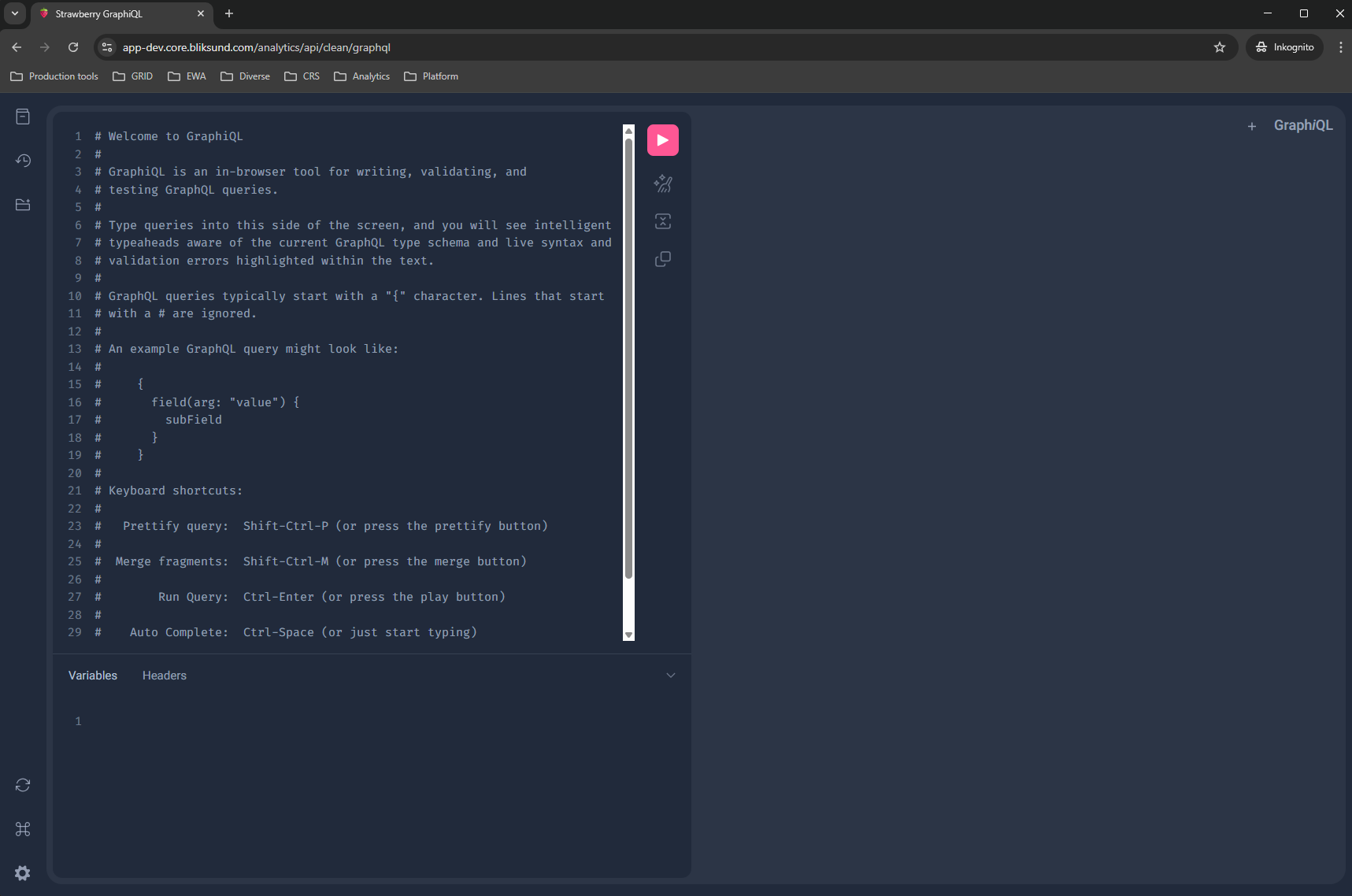
Key features:
- Query editor (left panel): write your GraphQL queries here.
- Results panel (right panel): see the query results.
- Documentation explorer: click Docs to browse all available tables and fields.
- History: find queries you have run before.
3. Your first query
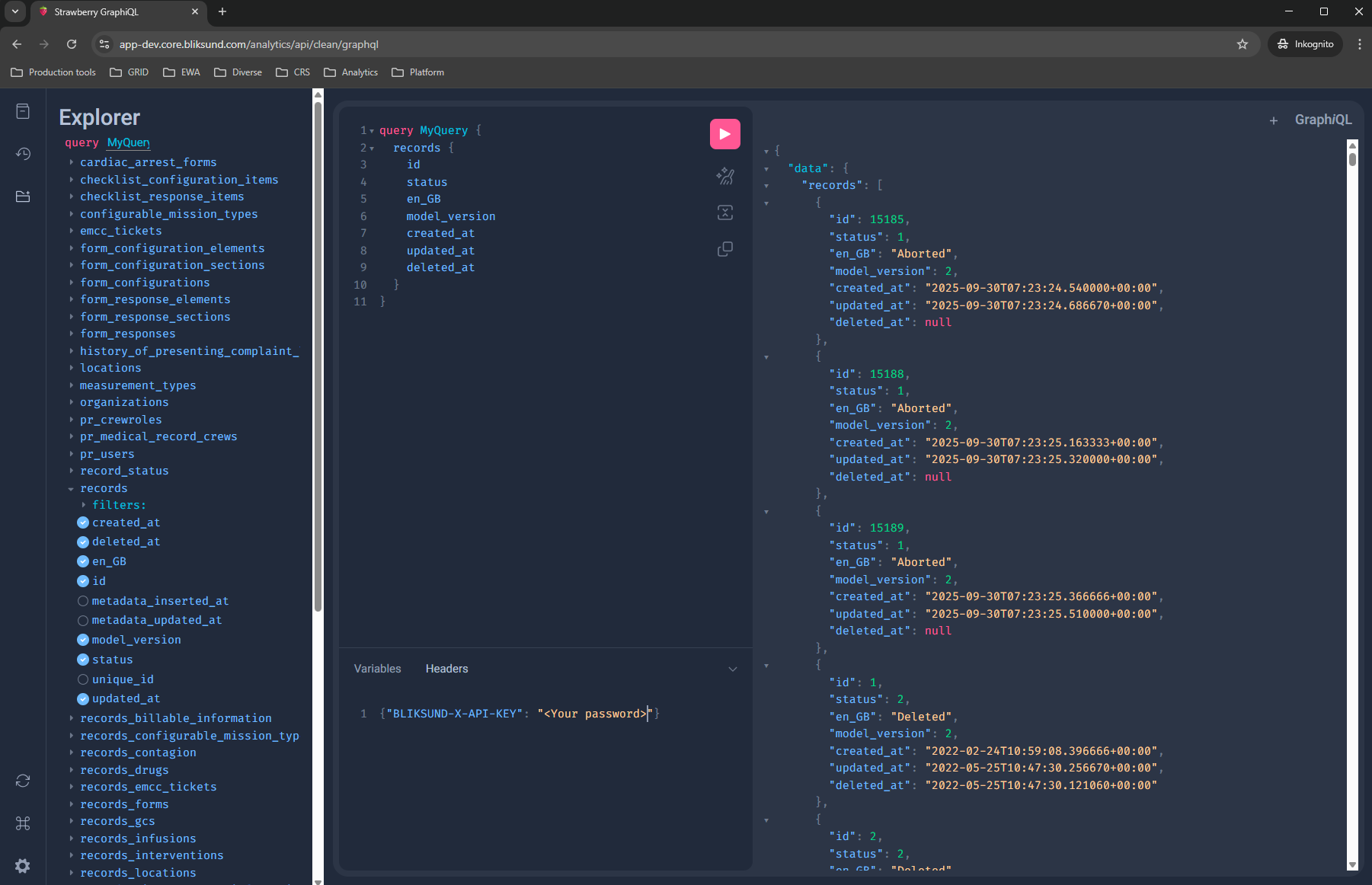
Run this query to confirm everything works:
query MyQuery {
  records {
    id
    status
    en_GB
    model_version
    created_at
    updated_at
    deleted_at
  }
}
It returns every record in the Clean layer, with the selected columns. For large tables, add filters, see Filtering and paging.
4. Integrate with your tools
See Examples for how to use the API from Python and Power BI.
Troubleshooting
Connection refused
- Check that the services are running:
docker compose -f docker-compose.ewa_analytics.yml ps. - Check the logs:
docker compose -f docker-compose.ewa_analytics.yml logs api. - Confirm the server URL and port, and check firewall and reverse proxy settings.
Authentication failed (401)
- Check that the API key is correct.
- Check that the header name matches
AUTHENTICATION__API_KEY_HEADER. - Include the header in every request, also when exploring in GraphiQL.
Tables are missing or the schema is empty
Analytics API reads the table structure when it starts. Restart it after the first run of Analytics Data Processing has finished, see First run.
Empty or unexpected results
- Test your query in GraphiQL (step 2).
- Check the field names in the documentation explorer.
- Check your filter conditions.
Slow queries
- Filter large data sets. Date filters are often a good choice.
- Request only the fields you need. With GraphQL you do not have to select the whole object.
Additional resources
- GraphQL documentation: https://graphql.org/learn/
- GraphQL query syntax: https://graphql.org/learn/queries/